Inventory
Which warehouse has it, how many left — know at once, no phone calls
Each store is a warehouse with its own stock. Move goods between them from a phone: the sending end presses "Send goods", the receiving end presses "Receive goods" — goods on the road stay on the books. Try it below.
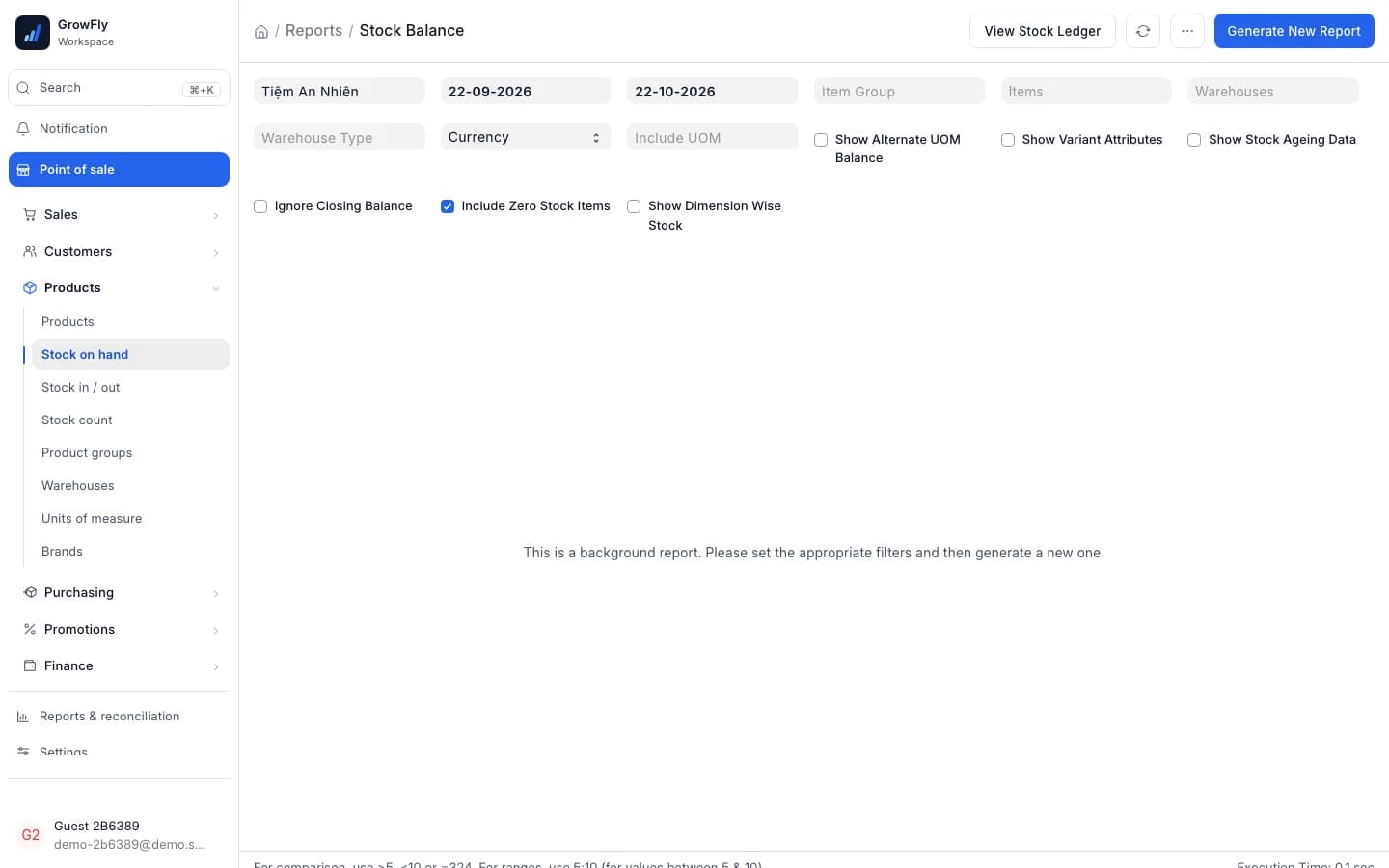
Use the real GrowFly, right here
This is not a picture: you go into the software itself, on a sample shop with products, customers and orders. The try-it guide walks you through this line of work step by step.
On a phone, the GrowFly app opens in a new tab.
- A shared sample shop — don't enter real information.
- Data is refreshed every night at 3:00 (Vietnam time).
- Payments, shipments and e-invoices in the demo are simulated.
No tech skills needed
Warehouse and store staff get it right away
Stock work happens on the phone, in the words shop staff already use. The bookkeeping takes care of itself.
Scan as you count
Stock counts on the phone: scan a barcode and it goes on the count. Several people can count one warehouse at once — every phone's numbers land on one count.
A transfer is two buttons
The sending end presses "Send goods", the receiving end "Receive goods". Short delivery? Change the number; what hasn't arrived waits in transit.
Each manager sees their own store
A store manager limited to a warehouse sees only that store in reports — no mixing with other stores' figures.
A tidy warehouse, stock figures you can trust
All under "Products" in the menu: Stock on hand, Stock in/out, Stock count, Warehouses, Units of measure, Brands.
Stock per warehouse, per store
Each store is a warehouse. The "Stock on hand" report shows how much of each item is where.
Stock in and out, on paper
Every movement in or out is a stock entry, so any stock figure can be traced back to where it came from.
Two-step transfers
Goods leave the sending warehouse when sent, wait in a transit warehouse on the road, and land when the other end confirms.
Stock counts on the phone
Several phones count one warehouse together. The stock manager reviews the differences and presses "Balance stock".
Batches and serial numbers
Items that need close tracking by batch or serial number are followed on the desktop, from receipt to sale.
Units, brands, groups
Set up units of measure, brands and product groups right in the "Products" area.
Low-stock reminders
Items running low or out in your stores show up under "To do" on the Home page by themselves.
Parcel dimensions
Each item has length, width and height (cm), used when you make a parcel for the carrier.
Inventory, situation by situation
Things that used to take a phone call, a notebook or the end of the month.
Stock count
The whole team counts, the manager settles once
Everyone opens the count on their phone and scans. Items that differ show "Over" or "Short" against the system figure. The stock manager reviews and presses "Balance stock" — stock on hand follows the count.
- Several phones count one warehouse; the numbers merge into one count
- Balancing adjusts only the items that differ
Counting stock
District 1 store
- Steel vacuum flask 500mlSystem 1412Short 2
- Set of 4 white cups 350mlSystem 99Match
- Cotton bath towel 70×140System 2021Over 1
- Electric kettle 1.7 LSystem 6–Not counted
3 counted · 2 differ
The stock manager reviews, then presses Balance stock.
Access by warehouse
Owners see the chain, stores see their part
The owner sees stock in every warehouse, goods on the road included. A store manager limited to a warehouse sees only their store's warehouse in reports.
- No separate "branch" object: each store is a warehouse, simple to grasp and to restrict
- The "Stock in & out" report follows goods in and out of each warehouse
Stock · Steel vacuum flask 500ml
Business owner
Sees every warehouse
- Main warehouse74
- On the road12
- District 1 store3
- Thu Duc store14
District 1 store manager
Limited by warehouse
- District 1 store3
Sees only their own store's warehouse in reports.
On the phone
On the shelf, reserved, expected
The GrowFly app shows each warehouse's stock as three figures: on the shelf, reserved for orders, and expected. Stock counts and transfers happen right in the app too.
- Batch and serial items are counted and transferred on the desktop
Stock
Steel vacuum flask 500ml
BGN-500
By warehouse
- District 1 storeThis till's3On shelf1Reserved2Expected
- Main warehouse74On shelf6Reserved68Expected
- Thu Duc store14On shelf0Reserved14Expected
Inventory is wired to everything else
Stock moves with each document; nobody updates it by hand.
- PurchasingA purchase receipt adds the supplier's goods to stock; items running low remind you to reorder.
- Point of saleA sale at the till takes stock from that till's warehouse; returns go back to the warehouse you pick.
- Orders & deliveryGoods shipped by carrier sit in the carrier's warehouse from pickup to delivery; parcels take their dimensions from the item.
- Accounting & reportsEvery stock entry posts itself; the "Stock in & out" report reads its figures from those same entries.
- MarketplacesMarketplace orders take stock out by themselves once handed to the carrier; pushing stock to the marketplace can be switched on, with a quantity kept back.
- Mobile appSee each warehouse's stock, count and transfer right in the GrowFly app.
Good to know first
- Each store needs its own warehouse; the store's till sells from that warehouse.
- Stock counts and transfers on the phone don't take batch or serial items yet — those are done on the desktop.
- Pressing "Balance stock" needs stock-manager rights; staff count and save the count.
- Moving over from KiotViet doesn't bring old stock counts or write-offs; stock levels are evened out to match.
Getting started with inventory
- 1
A warehouse per store
One warehouse for each store, plus a main warehouse if you have one.
- 2
Bring in goods and stock
Enter them with stock entries, or bring the stock over from KiotViet or MISA eShop.
- 3
Sell, transfer, count
Selling takes stock out; transfer and count from the phone when needed.
- 4
Read the reports
"Stock on hand" and "Stock in & out" always carry the latest figures.
Where do goods count while they move between warehouses?
In the transit warehouse. When the sender presses "Send goods" they leave the sending warehouse; when the receiver presses "Receive goods" they enter the receiving one. In between they stay on the books — never counted twice, never lost.
What if less arrives than was sent?
The receiver changes the number before pressing "Receive goods". What hasn't arrived stays in the transit warehouse and can be received later.
Can several people count at once without double counting?
Yes. Each person scans on their own phone and the numbers merge into one count for that warehouse. The stock manager reviews the differences and presses "Balance stock"; only items that differ are adjusted.
Do you track batches and serial numbers?
Yes, on the desktop, the standard ERPNext way. Stock counts and transfers on the phone don't take batch or serial items yet.
Can staff at one store see another store's stock?
That's up to your permissions. A store manager limited to a warehouse sees only their own store in reports.
I use KiotViet today — can my stock come over?
Yes. "Data migration" brings branches (each becomes a warehouse and a till), products, batches, serials and transfer history, then evens stock out to match. From MISA eShop it brings branches and products and evens stock out.
See the warehouses of a sample chain
The demo shop has several warehouses and goods ready — open the stock report or the app to look around.