Mobile app · iOS & Android
Your whole store on a phone, in the same books as the till
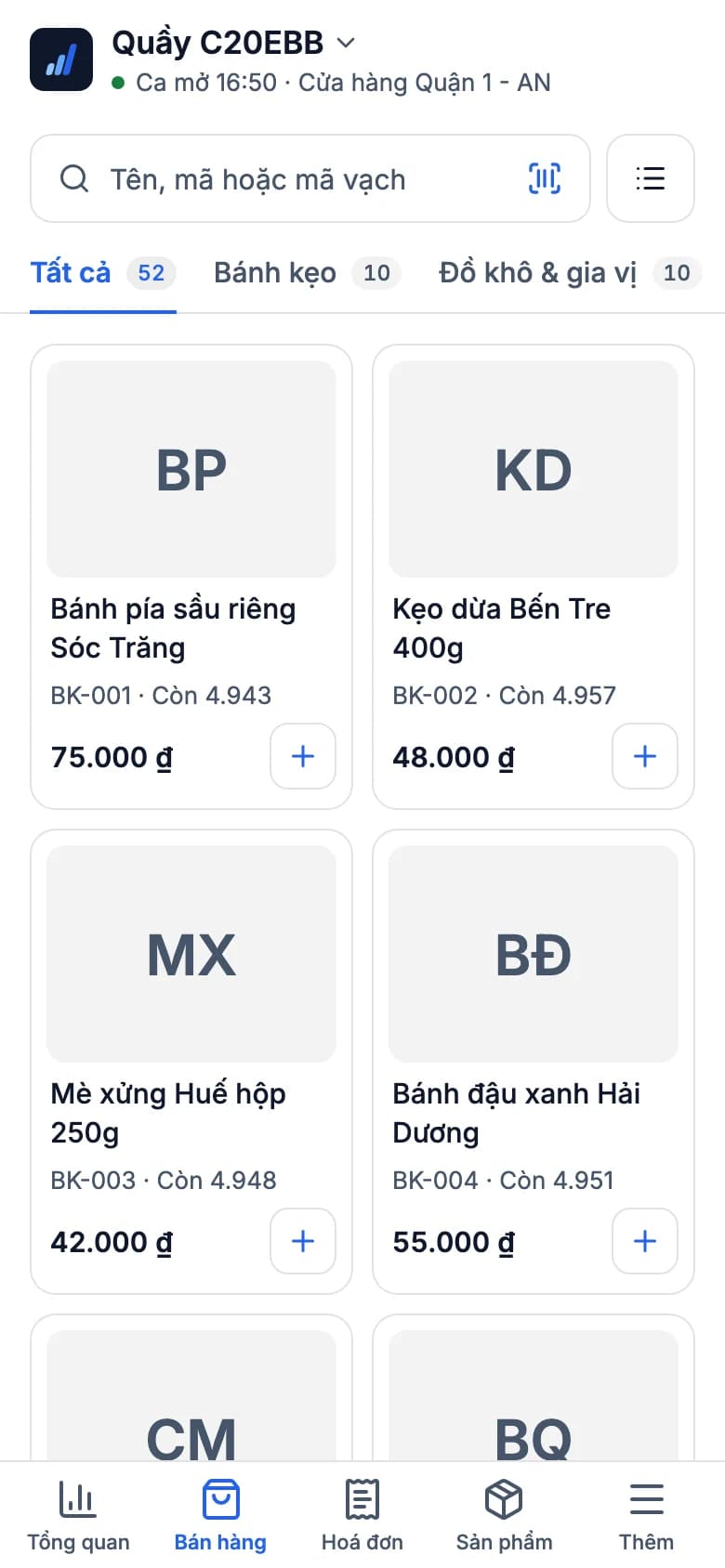
Staff scan with the camera, take cash or QR, create delivery orders, count and move stock. Owners open the Overview tab and see each store's sales. Every sale lands in the same data as the computer. Try it below — make a sale on a phone.
Use the real GrowFly, right here
This is not a picture: you go into the software itself, on a sample shop with products, customers and orders. The try-it guide walks you through this line of work step by step.
On a phone, the GrowFly app opens in a new tab.
- A shared sample shop — don't enter real information.
- Data is refreshed every night at 3:00 (Vietnam time).
- Payments, shipments and e-invoices in the demo are simulated.
No tech skills needed
If you can use a phone, you can sell
Four tabs along the bottom — Overview, Sell, Invoices, Products. Things used less live under "More".
The camera is the scanner
Press scan, hold the barcode in the frame, and the item is in the cart. The camera reads barcodes and serial numbers — no scanner to buy.
The QR says when money arrives
Press "Create a transfer QR" and the customer pays the exact amount. With SePay the app sees the money land — no checking the banking app.
Pressing twice never makes two sales
On a shaky connection, if staff press pay again the server still records one sale. Nobody has to hunt down duplicates.
What the app does
For sales staff, stock keepers and owners — each sees their own part of the work.
Camera scanning
Reads barcodes and serial numbers; search by name or code; grid or list by product group.
Discounts, coupons, points
Line discounts in %, a discount on the whole sale, coupon codes, and the customer's points.
Self-confirming transfer QR
A QR with the amount filled in; with SePay connected the sale completes when the money arrives.
Delivery orders
Flip "At the counter / Delivery": delivery method, carrier, delivery date, warehouse, delivery fee, COD or a deposit.
Open and close shifts
Open with the cash in the drawer; to close, count each payment mode and the app sets it against what's expected and shows the difference.
Stock per warehouse, counts, transfers
On the shelf, Reserved and Expected for each warehouse; stock counts and transfers have their own tabs.
Invoices and e-invoices
Invoices by Awaiting payment, Unpaid, Paid, Returns; e-invoices by Needs attention, Issuing, Issued.
An overview for owners
Sales by period, store and payment mode, best sellers, deliveries, the household-business tax threshold. Cashiers see only their own shift.
Phone, tablet, day or night
Turn a tablet sideways and the menu runs down the left, as on the computer. Light, Dark or follow the device.
Stock
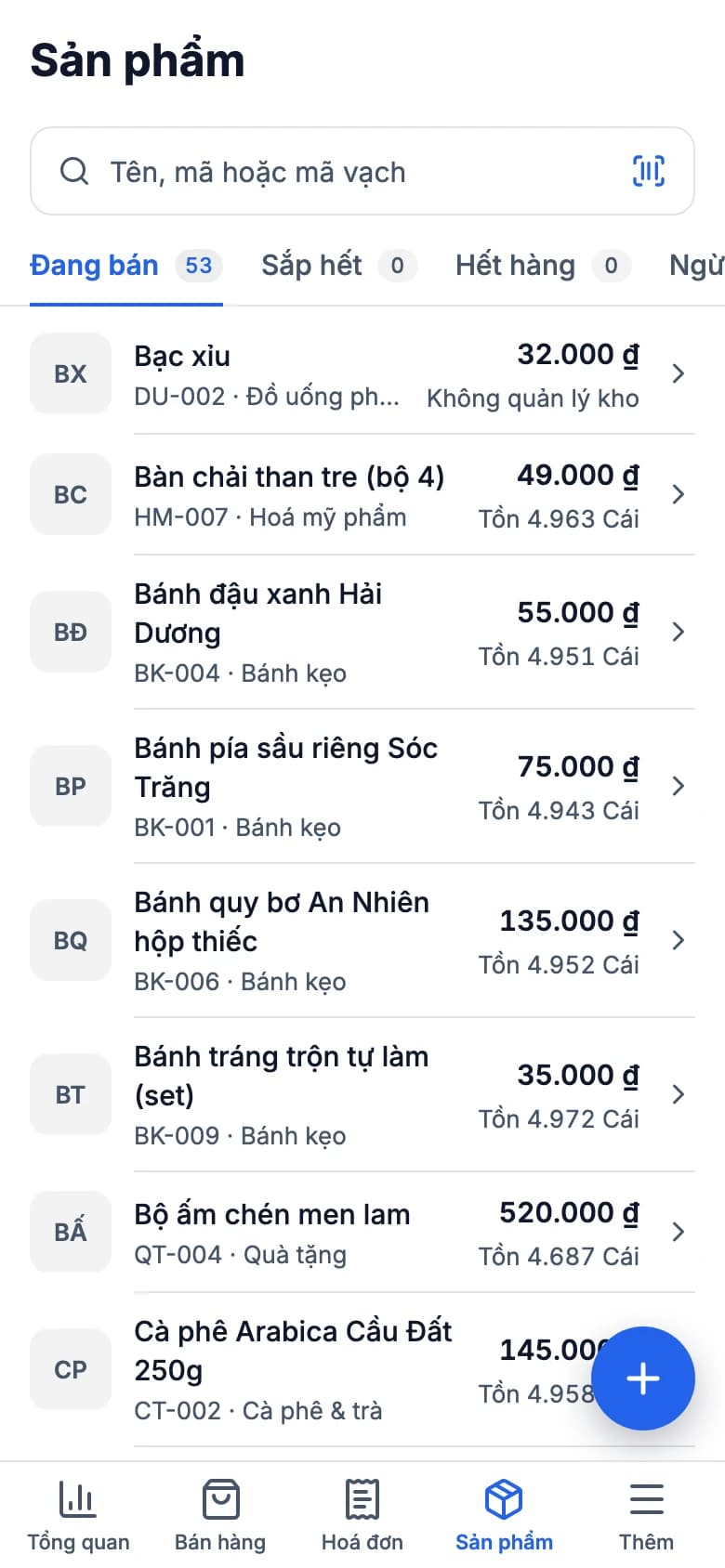
Check stock without walking to the warehouse
Look up an item to see each warehouse: On the shelf, Reserved for orders and Expected in. Stock counts and transfers are under "More".
Shipments
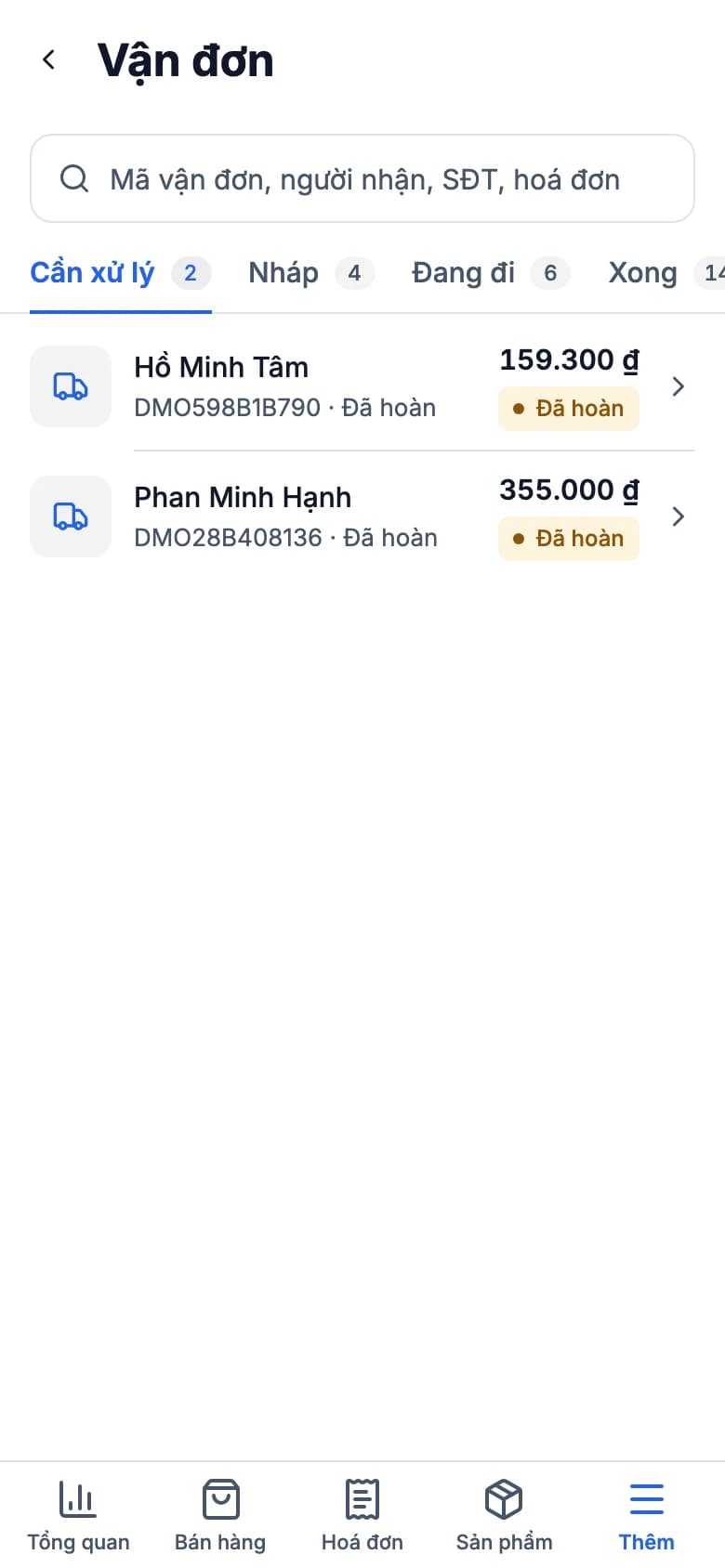
Shipments sorted by what needs doing
Shipments sit in Needs action, Draft, On the way and Done, so you see at once which ones need you.
Shifts
Closing a shift: the app adds up, staff just count
At the start, enter the cash already in the drawer. At the end, count and enter the real figure for each payment mode; the app sets it beside what's expected and shows the difference.
Close shift
Count the cash in the drawer and enter the real figure for each mode.
Main till · 38 sales
Cash
Expected 5,409,000 ₫
Counted
5,400,000
Difference−9,000 ₫
Bank transfer
Expected 7,330,000 ₫
Counted
7,330,000
Difference0 ₫
Close shift
Shaky connection
Press again, still one sale
Finishing a sale needs a connection. If it drops halfway and staff press pay again, the server returns the sale it already recorded instead of making a second.
One sale on the app
- Tap to complete the sale
- The connection drops
- Tap send again
- The sale is recorded exactly once
Every sale carries its own ID from the moment it's created on the device, so sending it again never creates a second one.
Sell on a phone, the whole system updates
The app isn't separate software — it's your GrowFly store in your pocket.
- Point of saleA sale in the app goes through a till just like on the computer: same price list, same warehouse, same books.
- InventorySelling, counting and moving stock on a phone update the stock the computer and every other phone see.
- Orders & deliveryA delivery order with a carrier comes with a draft shipment, tracked right in the Shipments tab.
- Promotions & loyaltyPromotions, coupons and points apply in the app as at the till; owners create promotions on the phone.
Good to know
- Finishing a sale needs a connection.
- In the app each sale takes one payment mode. Returns, exchanges, splitting a sale between sellers, holding a sale, several payment lines and the customer screen are done at the till on the computer.
- Staff sign in with the store's address and then their own account, or with Google or a passkey; everyone works within their own permissions.
- Self-confirming transfers need a SePay connection (optional). Without SePay, the QR still carries the amount.
Start selling in the app
- 1
Install and sign in
Enter the store's address, then your account — or Google, or a passkey.
- 2
Open a shift
Enter the cash already in the drawer.
- 3
Sell, then close
Scan and take payment; at the end, count the cash and the app shows any difference.
Which devices does it run on?
iOS and Android, on phones and tablets. On a tablet held sideways the menu runs down the left, as on the computer. Pick Light, Dark or follow the device.
Do I need a separate barcode scanner?
No. The app reads barcodes and serial numbers with the camera; a code the camera can't read can be typed right under the scanning frame.
What if the connection is weak?
Finishing a sale needs a connection. If it drops while sending and you press again, the server knows it's the same sale, so it never becomes two.
What can only be done on the computer?
Returns, exchanges, splitting a sale between sellers, holding a sale, splitting one sale across several payment modes, and the customer screen. In the app, each sale takes one payment mode.
Do app sales go into the same books as the till?
Yes. The app uses the store's own data: invoices, stock, shipments and promotions are one and the same. Owners see the figures in the Overview tab or in the reports on the computer.
Can cashiers see the whole store's sales?
No. Cashiers see their own shift; the full Overview by period, store and best sellers is for owners.
Make your first sale on a phone
Sign up and you get your own store. Install the app, enter the store's address and scan — that's it.