Point of sale
A till as quick as a cash register, with the books running behind it
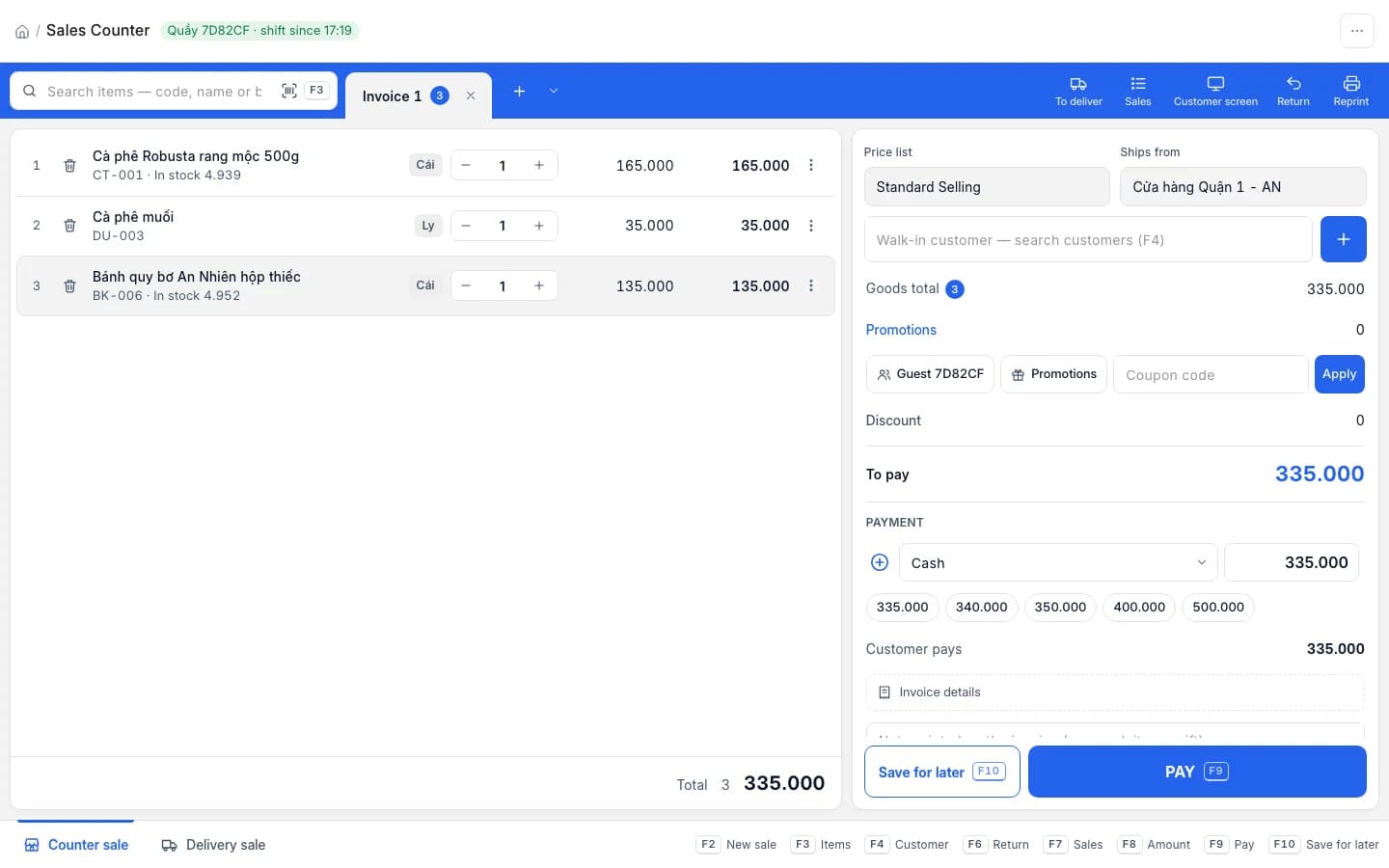
Cashiers scan and press pay. When a transfer lands the till says so, the e-invoice issues itself, stock goes down and the books are posted. Try it below — one sale takes four presses.
Use the real GrowFly, right here
This is not a picture: you go into the software itself, on a sample shop with products, customers and orders. The try-it guide walks you through this line of work step by step.
On a phone, the GrowFly app opens in a new tab.
- A shared sample shop — don't enter real information.
- Data is refreshed every night at 3:00 (Vietnam time).
- Payments, shipments and e-invoices in the demo are simulated.
No tech skills needed
New staff can sell on their first shift
The till works like what cashiers already know: a scanner, shortcut keys, big buttons. The hard part runs behind it on its own.
Scan and it's in the cart
One search box takes a name, an item code, a barcode or a serial number. Fire the scanner and the item drops in — nothing else to pick.
Shortcuts printed on screen
F2 new sale, F3 items, F4 customer, F9 pay, F10 hold — the shortcut strip always sits at the bottom of the till, nothing to memorise.
The till sees the money arrive
Customers scan a QR with the amount filled in. With SePay connected the till switches to "Received" by itself — no checking the banking app.
Everything at the counter, on one screen
From opening the shift to closing it.
Several sales at once
One tab per customer. While one waits to transfer, sell on another tab; Alt+1…9 switches.
QR with the amount filled in
A VietQR code with the amount and payment code shows at the till and on the customer screen. 48 banks can take QR.
Confirmed when the money lands
With SePay connected the till checks every 3 seconds and records the payment on the right invoice.
Promotions, coupons, points
Promotions apply to the cart by themselves; a coupon box for codes; members spend points at the till.
Several ways to pay one sale
Part cash, the rest by transfer. Quick-cash buttons round up, and the till works out the change.
Hold keeps the number
F10 holds an unfinished sale on the server; when the customer is back, finish it under the same invoice number.
A screen for the customer
A second screen shows the cart, a big QR and the change — customers see and scan it themselves.
Batches, serials, sellers
Pick batches or serial numbers from the till's own warehouse. Split one sale between up to 8 sellers.
The hard parts, done by the till
What makes a till more than a cash register.
QR payments & SePay
The customer transfers, the till says it's received
Each till uses its branch's own bank account. The QR carries the amount and a payment code, so customers send the right sum. With SePay connected, money landing in the account marks the invoice as paid.
- A list of 76 Vietnamese banks, 48 of which can take QR
- Customer changes their mind while you wait? "Pay the rest in cash" or "Stop waiting, edit the invoice"
- Without SePay the QR still carries the amount; the cashier confirms by hand
- Amount
- 245.000 ₫
- Payment code
- SD1024
The customer scans with any banking app.
Received 245.000 ₫
Confirmed automatically via SePay
Delivery from the counter
Take-away or delivery — the same till
Open a "Delivery order" tab and press F8 for the recipient, delivery method, who pays shipping and COD. Pick a carrier and its price quote shows right away. Delivery orders need no open shift.
- Delivery method: own staff or a carrier
- Shipping fee: customer pays, shop pays, or recipient pays the courier
- Allow inspection or trying on, declared value, notes for the courier
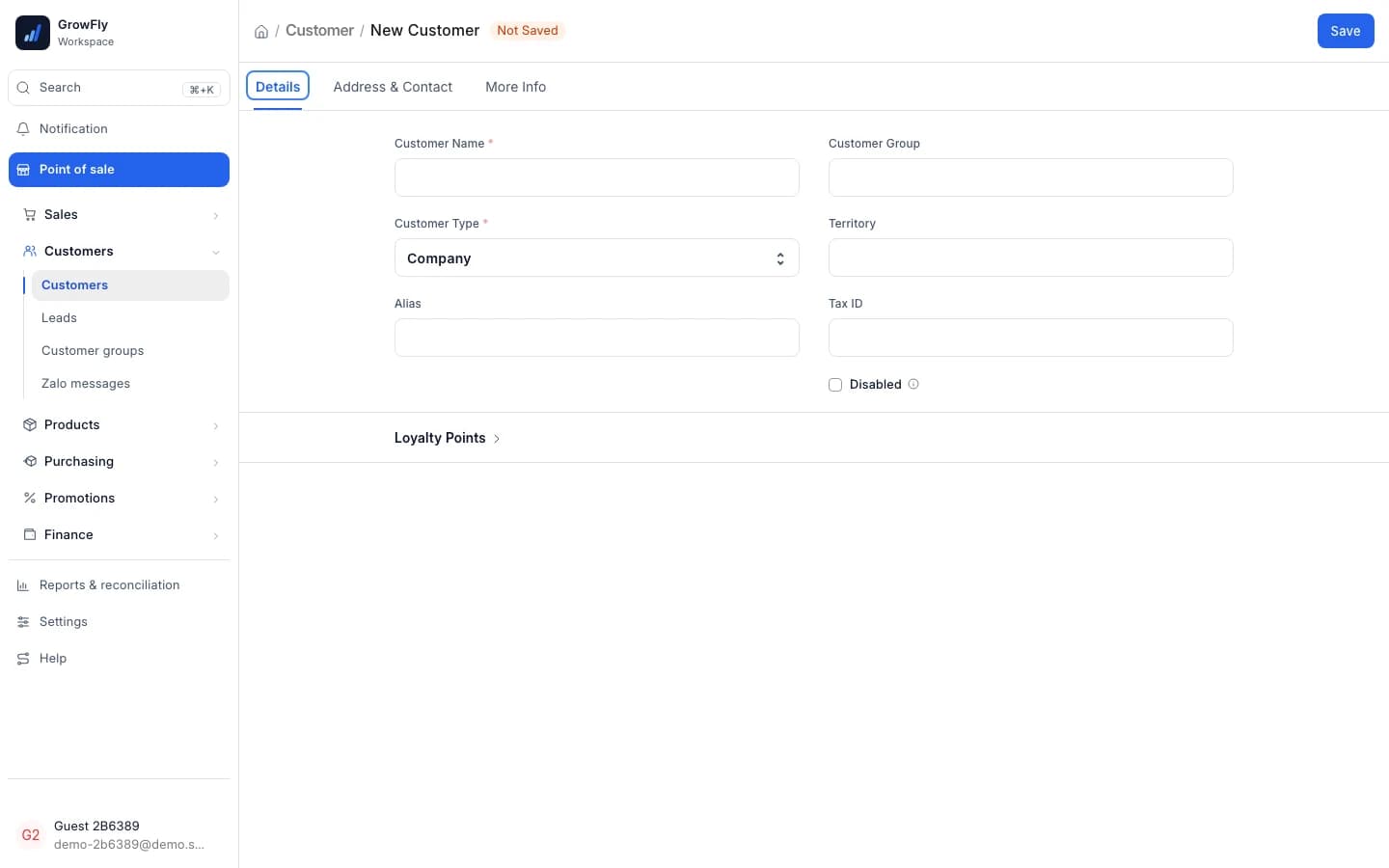
Returns & exchanges
Returns against the invoice, exchanges in one step
F6 finds the original invoice; pick what comes back, the reason, a return fee and the warehouse to restock. For an exchange, "Exchange" returns and sells in one go, netting the money.
- Ready-made reasons: faulty, wrong size, changed mind…
- The adjusting e-invoice is made automatically — nothing is cancelled
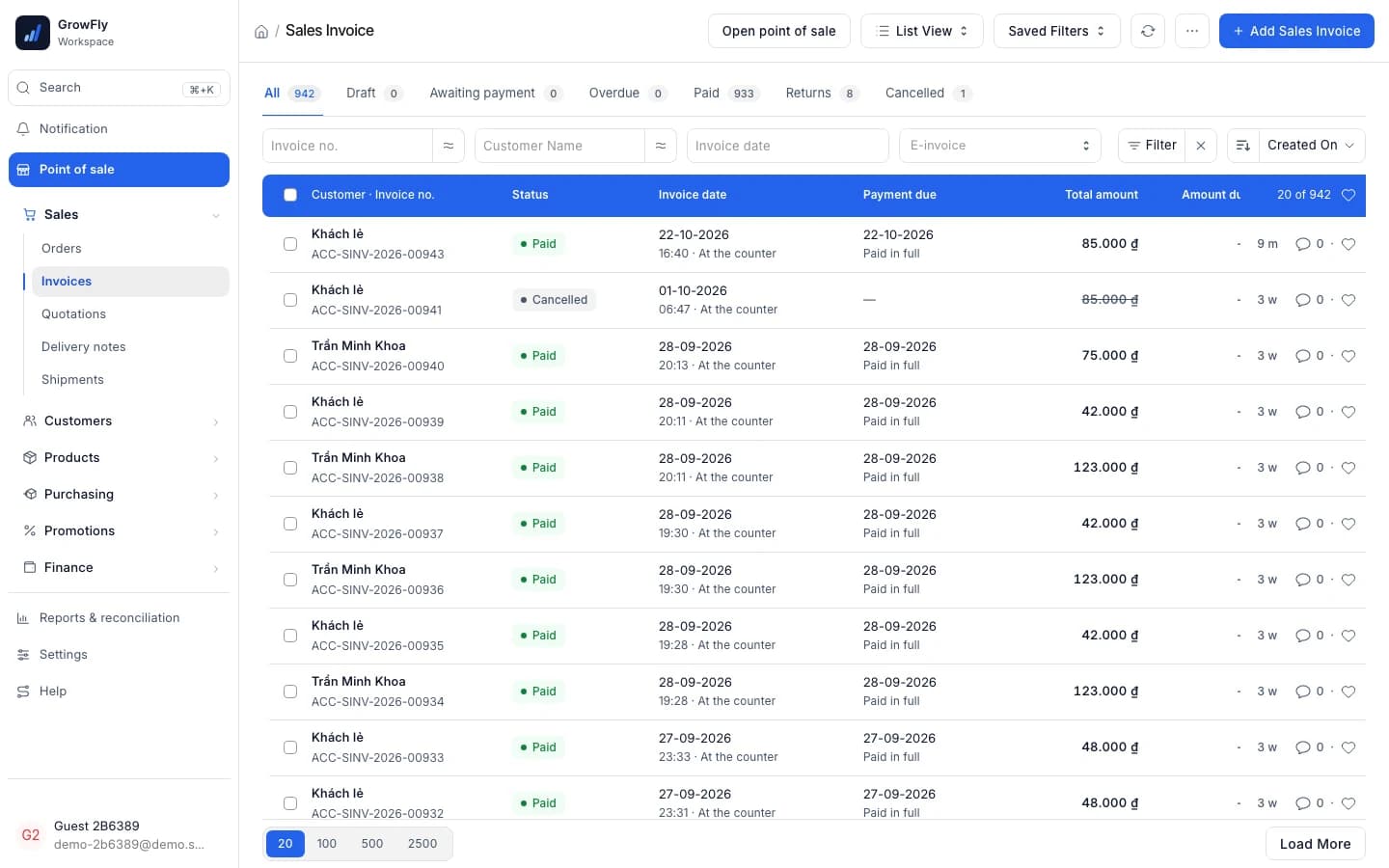
Shifts & branches
Every till set up its own way, every shift owned by someone
Open a shift with the starting cash; close it by checking each payment method. Each till has its own price list, warehouse, bank account and invoice series.
- Transfers land in the branch's own account
- The end-of-day report prints on 80 mm till paper
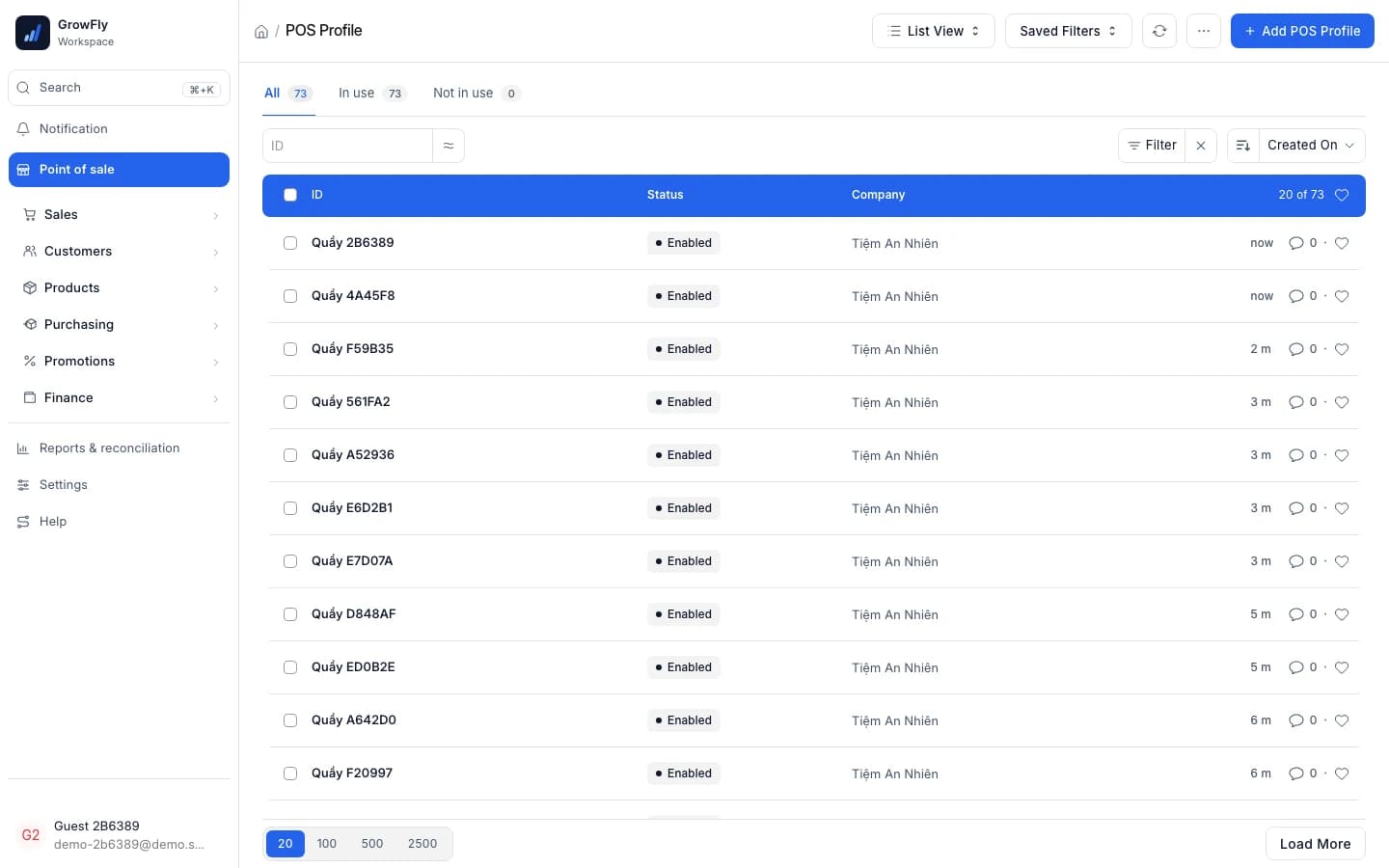
One sale at the till, the whole business updated
Nobody types anything twice.
- InventoryWhat you sell leaves the till's warehouse at once; when you search, the till shows how many that warehouse holds.
- Promotions & loyaltyPromotions, coupons and loyalty points apply to the cart by themselves.
- E-invoicesEvery sale gets a cash-register e-invoice, issued right after the sale.
- Accounting & reportsRevenue, cash and cost of goods are posted at once; the end-of-day report is ready.
What you need
- A bank account for the branch, so the till can show a QR (pick the bank, enter the account number and holder name).
- Automatic confirmation needs a SePay account (optional). Without it the cashier confirms by hand.
- QR codes are made by the VietQR service, so the till needs internet.
- Manual discounts at the till show only when you allow them in the till's settings.
How a shift goes
- 1
Open the shift
Enter the starting amount for each cash method.
- 2
Scan, pick the customer
Items drop into the cart; a new customer takes seconds.
- 3
Take payment
Cash, QR, card or a mix — with SePay it confirms itself.
- 4
Close the shift
Sales were posted as they happened; closing only checks the money.
Can I use my existing barcode scanner?
Yes. The till tells a scanner from typing by input speed, so a scan drops the item straight into the cart. You can also search by name, item code or serial number.
What is SePay, and do I need it?
SePay notifies when money arrives in your bank account. It's optional: without it the till still shows a QR with the amount and the cashier confirms. With it the till says "Received" and records the payment itself.
Can one sale be paid several ways?
Yes. "Add payment method" splits the sale into lines: some cash, the rest by transfer or card. The methods offered are those you set up for that till.
What happens to the e-invoice when a customer returns goods?
Under current rules an issued invoice is never cancelled. When goods are returned at the till, GrowFly makes a reducing adjustment invoice for the returned part.
Is selling on the phone the same as at the till?
The mobile app sells at the counter and for delivery, scans with the camera and takes QR payments. Returns, exchanges, holding a sale and several payment lines are currently at the desktop till only.
What about several branches?
Each branch has its own till with its own warehouse, price list, bank account and invoice series. Stock per warehouse and per branch is in the stock report and on the mobile app.
Sell a test order on the demo shop
A real till with sample data, no sign-up. Payments in the demo are simulated.